
How to Create an ICO File from a JPG Image
페이지 정보
작성자 Sven 작성일 26-10-23 23:05 조회 7 댓글 0본문
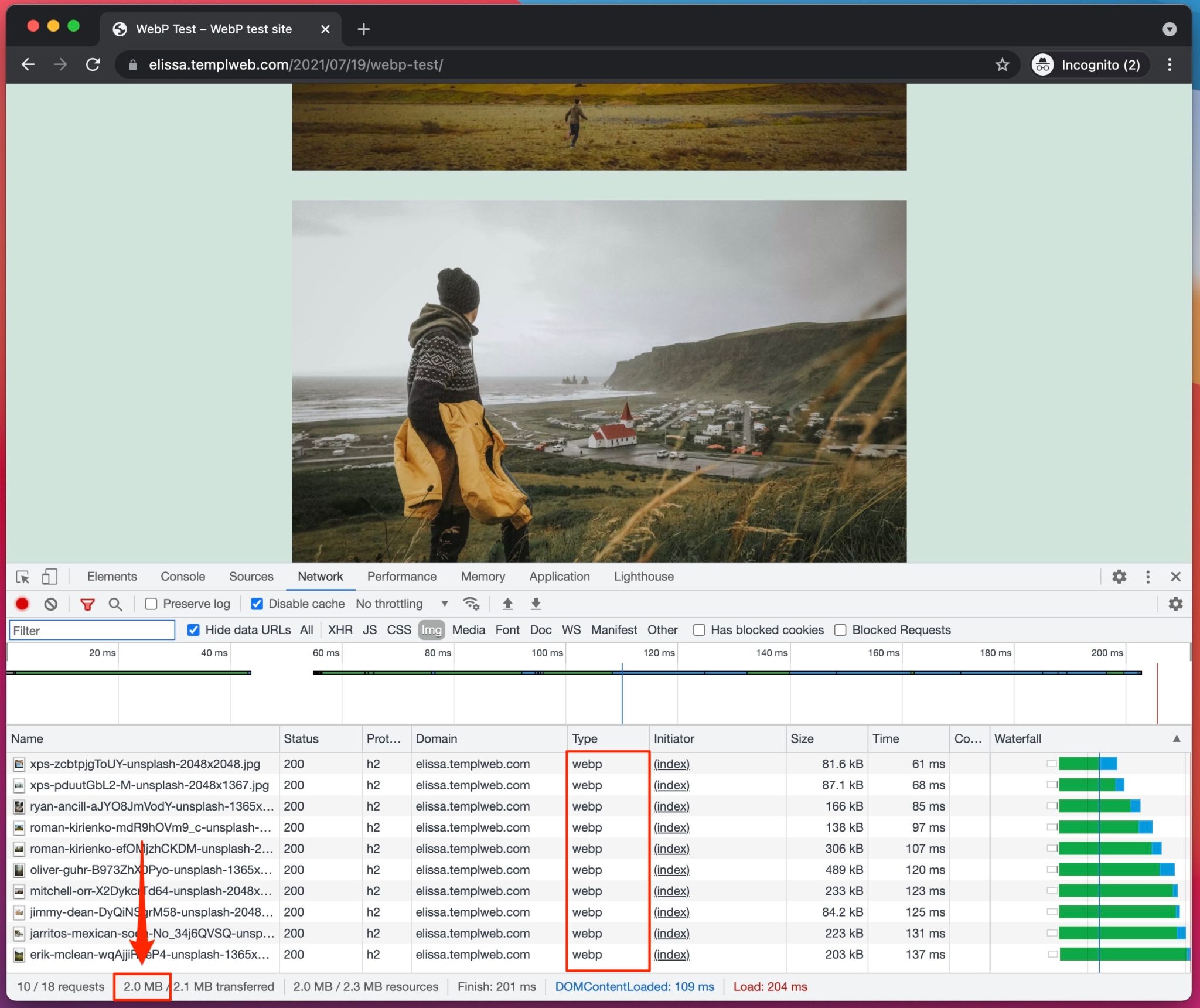 Choose a Converter: Search for "JPG to ICO converter" in your web browser. Popular options include ConvertICO, ICO Convert, and Online-Convert. Select the appropriate options. Once finished, download your new ICO file. Select Options: Some converters allow you to choose the sizes and formats you want to include in the ICO file. Upload Your JPG: Follow the website’s instructions to upload your JPG image. Convert and Download: Click the convert button and wait for the process to complete.
Browse for your newly created ICO file and select it. Check Different Sizes: Verify that the icon appears correctly at various sizes (e.g., 16x16, 32x32, 48x48) by adjusting the view settings on your desktop. Change an Icon: Right-click on a desktop shortcut or folder, select "Properties," and then click on the "Change Icon" button.
This can be done by adjusting the resolution and compressing the image. Aim for a square aspect ratio (e.g., 512x512 pixels) as this is commonly used for icons. Optimize the Image: Reduce the file size without compromising quality. Choose the Right Image: Select an image that is simple and recognizable, as intricate designs may not translate well into smaller icon sizes. Edit the Image: Use an image editing software like Adobe Photoshop, GIMP, or an online editor to crop and resize your image.
Resize the Image: Resize the image to the desired dimensions for your icon (typically 256x256 pixels for high-resolution icons). Adjust Settings: If prompted, select the desired sizes and color depths you want to include in the ICO file. Ensure the image maintains a square shape. If your software does not support ICO, consider using a plugin or an alternative software that does. Export as ICO: In the file menu, select "Save As" or "Export." Choose the ICO format from the list of available formats. Save the file to your desired location. Open the Image: Launch your preferred image editing software and open the JPG file.
Darmowe konwertery zdjęć online to niezwykle przydatne narzędzia, które mogą znacznie ułatwić codzienną pracę z obrazami. Każdy z wymienionych narzędzi ma swoje unikalne cechy, które mogą być przydatne w różnych sytuacjach. Wybór odpowiedniego konwertera zależy od indywidualnych preferencji oraz wymagań użytkownika. Warto eksperymentować z różnymi platformami, aby znaleźć tę, która najlepiej odpowiada naszym potrzebom. Dzięki nim możemy szybko i bezproblemowo zmieniać formaty plików, a także edytować zdjęcia według własnych potrzeb. Bez względu na to, czy jesteś profesjonalnym fotografem, czy tylko amatorskim entuzjastą, darmowe konwertery zdjęć online z pewnością będą pomocne w codziennym użytkowaniu.
Este estudio de caso explora los motivos detrás de esta conversión, el proceso involucrado y las consideraciones a tener en cuenta para lograr resultados óptimos. La transformación de imágenes de un formato a otro es una práctica común en el mundo de la fotografía y el diseño gráfico. En este caso, nos enfocaremos en la conversión de imágenes JPG a TIFF, un proceso esencial para aquellos que buscan una impresión de alta calidad.
Po pierwsze, są dostępne z każdego miejsca i na każdym urządzeniu, które ma dostęp do Internetu. Po drugie, wiele z tych narzędzi jest intuicyjnych w obsłudze, co sprawia, że nawet osoby bez technicznego doświadczenia mogą z nich korzystać. Wreszcie, konwertery online często oferują wsparcie dla wielu formatów plików, co czyni je uniwersalnym rozwiązaniem dla różnych potrzeb. Nie trzeba instalować dodatkowego oprogramowania, co często zajmuje cenny czas i miejsce na dysku twardym. Konwertery zdjęć online oferują szereg korzyści.
Here’s a step-by-step guide: Websites like Zamzar, Convertio, and Online-Convert offer simple interfaces where users can upload their ICO files, select PNG as the desired output format, and download the converted files. Online converters are one of the easiest ways to convert ICO files to PNG.
Chociaż wymaga pewnej wiedzy technicznej, oferuje niezwykle szeroki zakres funkcji, w tym konwersję, edycję i tworzenie zdjęć. Użytkownicy mogą korzystać z ImageMagick za pomocą poleceń w terminalu, co czyni go bardzo potężnym narzędziem dla tych, którzy znają się na programowaniu. ImageMagick to narzędzie bardziej zaawansowane, które jest idealne dla programistów i osób z technicznym zacięciem.
This feature allows you to resize several images at once, saving you time. Use Batch Processing for Multiple Images: If you need to resize multiple images, look for tools that offer batch processing capabilities.
Step 2: Once the file is loaded, go to `File >Export As`. Step 3: In the export dialog, choose PNG as the file format from the dropdown menu. Step 4: Click `Export`, and adjust any settings if necessary. Step 1: Open GIMP and import the ICO file by selecting `File >Open`. Step 5: Save the file.
 Whether you choose an online tool, desktop software, or a mobile app, the process can be straightforward and efficient. Resizing a JPG image quickly is a skill that can greatly enhance your digital experience. By following the steps outlined in this guide and keeping quality considerations png umwandeln in pdf mind, you can ensure that your images look great no matter their size. With practice, resizing images will become a seamless part of your digital workflow, allowing you to share and present your visuals with ease.
- 이전글 Dusche unter der Dachschräge: Kreative Lösungen für kleine Badezimmer
- 다음글 The Impact of Climate Change on Global Biodiversity
댓글목록 0
등록된 댓글이 없습니다.